
To improve Wi-Fi signal in a South African house, it helps to separate the internet service from the wireless signal inside the home. Fibre, LTE or 5G may still be working well while the router struggles to spread a strong signal to every room. That difference matters, especially in larger homes, double-storey layouts and houses with thick walls or busy household devices.
The safest approach is a simple diagnostic flow that starts with room location and device checks, then moves on to router placement, interference and connection tests. This guide keeps the steps practical and avoids risky changes, such as opening equipment or altering wiring, unless a qualified professional or the provider has given clear instructions.
improve Wi-Fi signal in a South African house
The first step is to find out whether the issue affects one room, several rooms or the whole house. A phone, laptop or tablet can be tested in different areas of the home, starting near the router and then moving farther away. If the connection is strong next to the router but weak in the bedroom or study, the problem is more likely to be wireless coverage than the internet service itself.
It also helps to compare performance on more than one device. If one phone connects badly while another device works normally in the same room, the issue may be specific to that device rather than the router. If every device struggles in every room, the provider-side connection, the router or the home layout may need closer attention.
2. Compare performance near and far from the router
A simple distance test can reveal a great deal. Standing close to the router and checking whether pages load quickly, video calls stay stable and streaming remains smooth gives a useful baseline. Moving two or three rooms away, or upstairs in a multi-storey house, shows how much of the problem is caused by walls, floors and distance.
Where possible, the test should be repeated at the same time of day. A slower result in the evening may point to household congestion or general network traffic, while poor performance only in certain corners of the house suggests a weak wireless signal. This kind of comparison is more useful than making a quick judgement from one failed connection alone.


3. Place the router with the home layout in mind
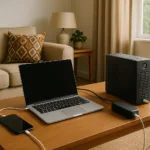
Router position often makes the biggest difference. A central, open location usually works better than a hidden corner, a cabinet or a spot on the floor. Thick walls, reinforced concrete, mirrors, metal shelving and large appliances can weaken the signal before it reaches the far side of the house.
In a double-storey home, placing the router near the middle of the living space may help both floors receive a more even signal. It is also sensible to keep the router away from microwave ovens, cordless phone bases and other electronics that may interfere with wireless performance. Any changes should remain simple and safe, with the device left ventilated and undisturbed.
4. Restart safely before changing settings
A safe restart can clear temporary glitches. The router should be powered off using its normal switch or power plug, then left off for a short period before being turned back on. For fibre homes, the separate ONT may also need a restart if the provider says that is appropriate, but provider-managed equipment should not be reset without guidance.
After restarting, the household should test the connection again in the same rooms used earlier. If the signal improves for a while and then fades again, the issue may be related to heat, firmware, congestion or an unstable external connection. Repeated factory resets are best avoided unless the ISP or manufacturer specifically advises them.
5. Check whether the problem is Wi-Fi or the internet service
It is important to tell the difference between a weak wireless signal and a provider-side outage. If the router lights suggest that the service is down, or if all devices lose access even when standing close to the router, the internet connection itself may be the problem. That can happen on fibre, LTE or 5G services, and it is not always caused by the home network.
By contrast, if the connection works near the router but becomes unreliable farther away, the issue is more likely to be Wi-Fi coverage. Congestion can also play a role when many devices are active at the same time, especially during evenings when the house is busy. The pattern matters more than guessing the cause from one moment of poor performance.
6. Review device and network settings carefully
Trusted network settings and strong passwords help keep the connection secure while troubleshooting. The household should confirm that the device is joined to the correct network name and not an unfamiliar or similarly named one. Saved passwords should be checked carefully, especially if a router has recently been replaced or reconfigured by the provider.
If a household has access to router settings, any changes should be made cautiously and only after checking the ISP support information or device documentation. Some settings can improve performance, but incorrect changes may make the connection worse. It is safer to avoid unfamiliar menus than to experiment on a provider-managed device without guidance.
7. Consider the home’s obstacles and the practical limits of wireless coverage
Large homes, extended family houses and properties with multiple walls between rooms often need more than one placement attempt before the best position is found. Wireless signals do not travel equally well through every material, so a room that is only a few metres away can still receive a poor signal if the path is blocked. This is common in homes with stairwells, brick walls or rooms added onto an older layout.
Where a single router cannot cover the entire house evenly, mesh equipment or extenders may help, but the trade-offs should be understood first. They can improve reach in some layouts, yet performance depends on placement, backhaul quality and the home’s structure. A networking technician can advise whether a wired access point, a mesh system or a simple repositioning would be the better fit.
8. Decide when to contact the provider or a technician
If the signal remains poor after location checks, safe restarts and basic comparisons, the next step is to contact the ISP or a qualified technician. The provider can confirm whether there is a line issue, account problem or service outage, while a technician can assess the home layout and advise on safe coverage improvements. That is especially helpful when the issue appears across all devices and all rooms.
It is also sensible to seek help if the router keeps disconnecting, the same room is always affected despite changes in placement, or the household is unsure which device is responsible for the problem. For South African homes that rely on fibre or mobile backup, a broader connectivity plan can help as well, including a practical home internet backup plan for South Africa when the primary service is unreliable.
In many homes, the best result comes from a simple sequence: check the location, test different devices, compare near and far performance, then speak to the provider if the fault does not sit clearly inside the house. That approach avoids unnecessary changes and makes it easier to identify whether the trouble is coverage, congestion or the service itself.
What to Check Before Choosing a Data SIM for Backup Internet

Kagiso Maseko is an author at Maventaro who writes about practical and affordable solutions for South African homes. His articles help readers make informed decisions about backup power, water storage, internet connectivity, home maintenance and everyday savings.